
Руководство по OpenVPN для SIP-телефонов: основы VPN, установка сервера Ubuntu и Windows, создание сертификатов, настройка клиента, загрузка файлов в телефон и использование VPN NAT.
Виртуальная частная сеть, или VPN, представляет собой защищенное сетевое соединение, создаваемое поверх общедоступной сети. В отличие от обычного сетевого соединения, она использует специальные туннельные протоколы, обеспечивающие шифрование данных, проверку целостности и аутентификацию пользователей. Это помогает защитить передаваемую информацию от просмотра, изменения и копирования. С точки зрения безопасности сетевого соединения это похоже на создание выделенной частной линии в публичной сети. Поскольку такая линия является логической, а не физической, она называется виртуальной частной сетью. Система VPN включает VPN-сервер, VPN-клиенты и туннели. Передача данных через Интернет значительно дешевле аренды выделенной линии, поэтому VPN позволяет предприятиям безопасно и экономично передавать частную и конфиденциальную информацию через Интернет.
В данном руководстве описывается настройка VPN с помощью OpenVPN. OpenVPN — это сторонний инструмент с открытым исходным кодом для настройки виртуальной частной сети, который позволяет использовать существующие устройства для построения VPN-шлюза приложений.
OpenVPN — это сторонний инструмент с открытым исходным кодом для настройки виртуальной частной сети, который позволяет использовать существующие устройства для построения VPN-шлюза приложений. Ниже описаны развертывание и настройка сервера в операционных системах Ubuntu и Windows.
2.1.1 Установка сервера OpenVPN
В Ubuntu введите следующие команды:
sudo apt-get -y install openvpn libssl-dev openssl
sudo apt-get -y install easy-rsa
2.1.2 Создание сертификатов
Выполните следующие команды, чтобы создать начальную конфигурацию сертификатов, необходимую для нормальной работы OpenVPN:
sudo mkdir /etc/openvpn/easy-rsa/
sudo cp -r /usr/share/easy-rsa/* /etc/openvpn/easy-rsa/
sudo su
sudo vi /etc/openvpn/easy-rsa/vars
----->При необходимости измените параметры сертификатов следующим образом:
export KEY_COUNTRY=”CN”
export KEY_PROVINCE=”BJ”
export KEY_CITY=”BeiJing”
export KEY_ORG=”fanvil”
export KEY_EMAIL=”fanvil@fanvil.com”
export KEY_OU=”fanvil”
export KEY_NAME=”server”
Запустить vars: source vars
Если это первый запуск, очистите все: ./clean-all
Создать сертификат CA: ./build-ca
Создать сертификат сервера: ./build-key-server server
Создать сертификат клиента: ./build-key client
Создать библиотеку динамических ключей. ./build-dh
Настройте серверную среду и поместите соответствующие файлы конфигурации сертификатов в указанный каталог:
cp keys/ca.crt /etc/openvpn/
cp keys/server.crt keys/server.key keys/dh2048.pem /etc/openvpn
mv /etc/openvpn/dh2048.pem /etc/openvpn/dh1024.pem
cp keys/client.key keys/client.crt /etc/openvpn/
cp /usr/share/doc/openvpn/examples/sample-config-files/server.conf.gz /etc/openvpn/
cd /etc/openvpn
gzip -d server.conf.gz
cp /usr/share/doc/openvpn/examples/sample-config-files/client.conf /etc/openvpn/
Запустить сервер:
/etc/init.d/openvpn restart
2.3.1 Установка сервера OpenVPN
Найдите в Интернете и загрузите версию OpenVPN для Windows. В данном примере используется OpenVPN GUI. Дважды щелкните загруженную программу и установите ее с параметрами по умолчанию. Во время установки обязательно выберите компонент easy-rsa. Путь по умолчанию: C:\Program Files\OpenVPN.
2.3.2 Создание сертификатов
Перед выполнением операции сначала выполните инициализацию среды:
Измените следующую часть файла C:\Program Files\OPENVPN\easy-rsa\vars.bat.sample в соответствии со своей ситуацией:
set HOME=C:\Program Files\OPENVPN\easy-rsa
set KEY_COUNTRY=CN #(страна)
set KEY_PROVINCE=BEIJING #(провинция)
set KEY_CITY= BEIJING #(город)
set KEY_ORG=WINLINE #(организация)
set KEY_EMAIL=admin@winline.com.cn #(адрес электронной почты)
Строки, начинающиеся с #, являются комментариями. Не записывайте их в файл.
Откройте cmd с правами администратора, войдите в DOS и выполните следующие команды для перехода в каталог
openvpn\easy-rsa:
init-config
vars
clean-all
Создать корневой сертификат: build-ca (нажимайте Enter до конца, чтобы использовать конфигурацию по умолчанию)
Создать библиотеку динамических ключей: build-dh
Создать сертификат сервера: build-key-server server (нажимайте Enter до конца, чтобы использовать конфигурацию по умолчанию)
Создать сертификат клиента: build-key client (нажимайте Enter до конца, чтобы использовать конфигурацию по умолчанию)
2.3.3 Запуск сервера
Все созданные ключи сохраняются в каталоге OpenVPN\easy-rsa\keys.
Скопируйте созданные сертификаты в каталог OpenVPN\config.
Скопируйте файл конфигурации сервера из OpenVPN\sample-config в каталог OpenVPN\config, затем запустите приложение OpenVPN.
В каталоге установки OpenVPN используйте notepad++ для открытия файла server.ovpn или server.conf. Пример серверного файла приведен ниже:
port 1194 # Этот порт назначен IANA для OpenVPN и может быть изменен при необходимости
proto udp # также можно выбрать tcp
dev tun
ca ca.crt
cert server.crt
key server.key
dh dh1024.pem
server 10.8.0.0 255.255.255.0 # Настройка сегмента виртуальной LAN; измените при необходимости
ifconfig-pool-persist ipp.txt
keepalive 10 120
client-to-client
comp-lzo
max-clients 100
persist-key
persist-tun
status openvpn-status.log
verb 3
Более подробную информацию можно найти в OpenVPN Wiki.
Под клиентом здесь понимаются устройства, поддерживающие OpenVPN. Чтобы SIP-телефон мог подключиться к серверу OpenVPN, необходимы файлы сертификатов.
Сначала отредактируйте клиентский конфигурационный файл client.ovpn или client.conf. Пример клиентского конфигурационного файла приведен ниже:
client
dev tun
proto udp
remote 192.168.1.135 1194 # домен/IP сервера и порт
resolv-retry infinite
nobind
persist-key
persist-tun
ca ca.crt
cert client.crt
key client.key comp-lzo
verb 3
Вы можете изменить конфигурацию клиента в соответствии с настройками сервера.
Затем экспортируйте ранее созданные клиентские файлы ca.crt, client.crt и client.key для использования при обновлении SIP-телефона.
Войдите на веб-страницу телефона и последовательно нажмите Сеть->VPN. В поле файлов OpenVPN поочередно загрузите client.ovpn, client.key, client.crt и ca.crt. После завершения загрузки в поле файлов OpenVPN будет отображен размер загруженных файлов сертификатов, как показано ниже: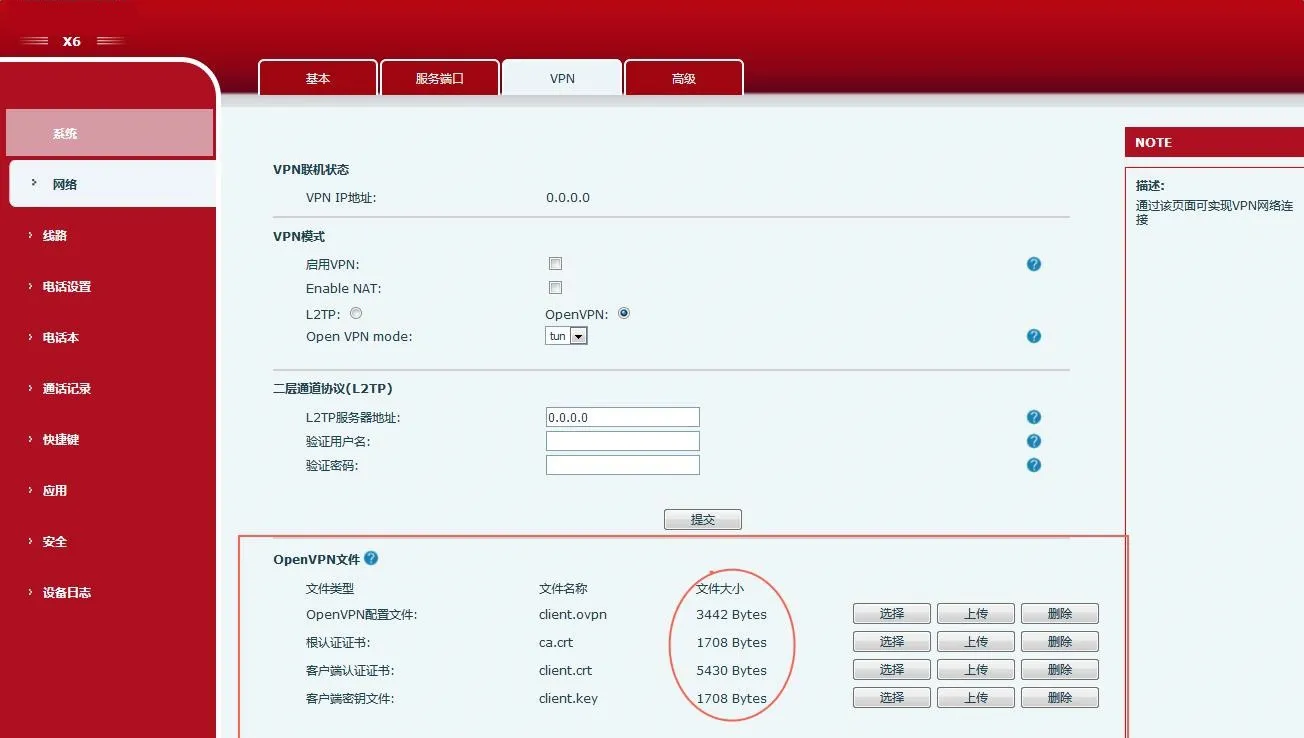 Откройте страницу конфигурации VPN, выберите Open VPN в качестве режима VPN, включите VPN и нажмите кнопку Отправить. После успешного подключения к серверу в поле состояния VPN-соединения на странице VPN будет показан полученный IP-адрес. Как показано ниже, полученный IP-адрес — 10.8.0.10.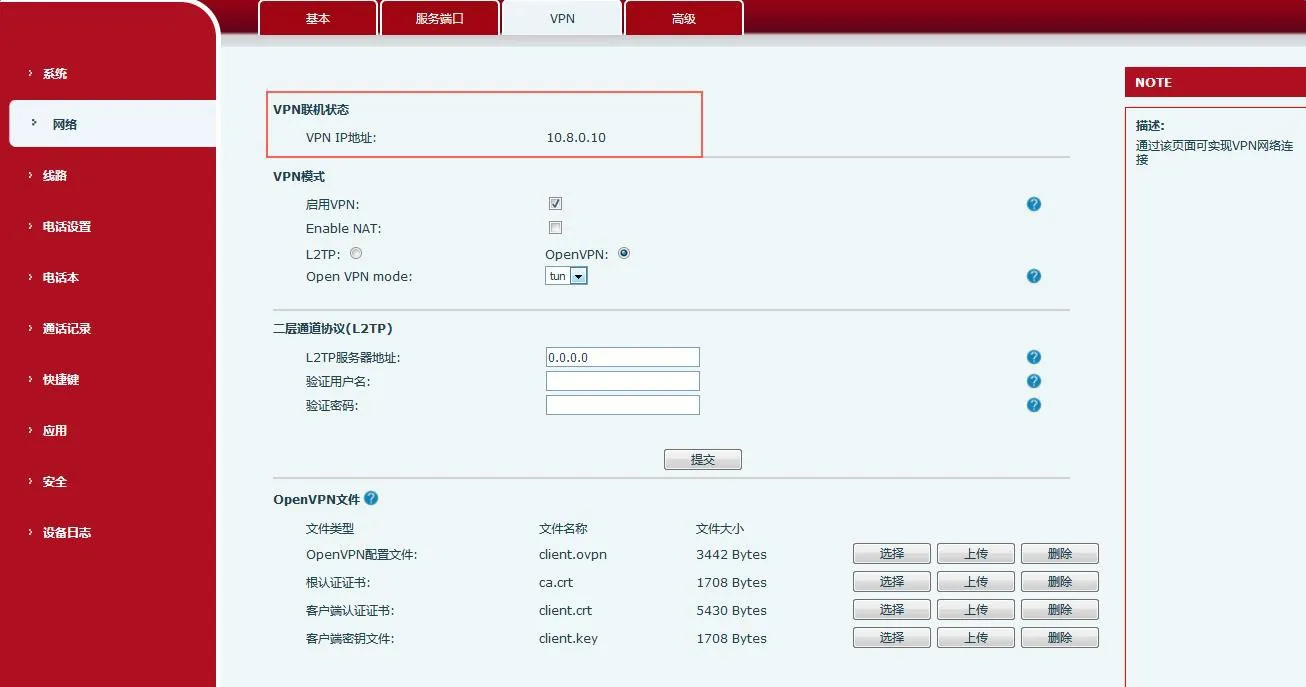
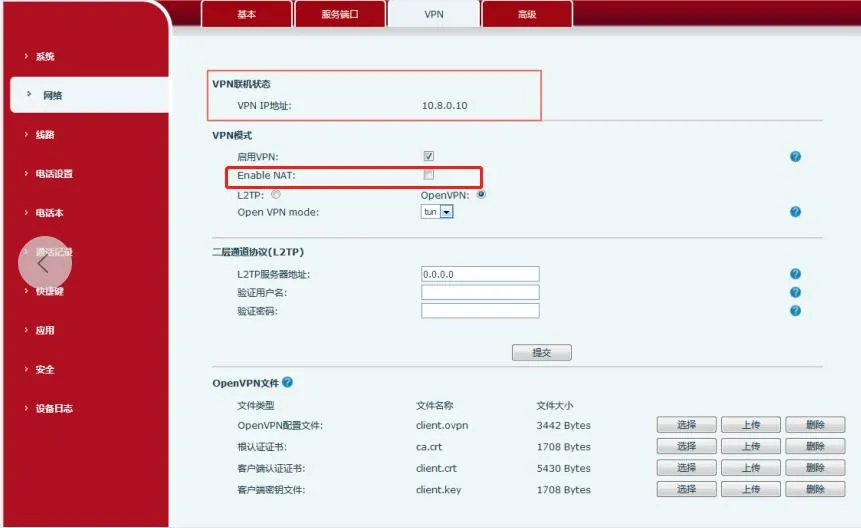
Способ использования:
Импортируйте VPN-сертификаты в телефон, включите Enable VPN и Enable NAT, затем подключите ПК к LAN-порту телефона. Шлюз ПК должен быть установлен на IP-адрес телефона. После этого ПК сможет получить доступ к VPN телефона.
PC ping10.8.0.10 выполняется успешно, и ping www.baidu.com также выполняется успешно. 10.8.0.10 — это IP-адрес VPN.
Примечание: в настоящее время поддерживаются модели J3G/X3U/X3SG/J1P, а также X5S/X6/X7/X7C/X210/X210i. Телефоны X3S/X4/X7 пока не поддерживаются.